How I Utilize Github to Store and Download My Public SSH Keys
Store your SSH public keys on GitHub and provision any new Linux server with one command using ssh-import-id-gh. No manual key copying needed.

The first thing I do after I install a fresh new VM is SSH into that machine and use it locally. Now i will not rant about SSH and its uses and why you need it or why it’s better than web console. So, let’s get to the point.
Logging In
There are two ways we can login to server:
- Key Pair Method
- Username/Password
Although SSH is very secure protocol in on itself, it is not totally immune to Bruteforce attack and other Human Errors that could lead to some error. By allowing users to login with Username and Password, we leave the machine vulnerable to such attacks. And that’s here KeyPair Method comes.
KeyPair Method: In this method we will have a Public Key and Private Key. Each of the keys are a long random complex characters As their name suggest one can be Public and another should be kept very securely.
For our intense and purpose, Public Keys are stored in Remote Server and Private Keys are stored in Our Private Machine.

Generating Key Pair
Now before we move on to server setup, let’s create a key pair.
- Open your CLI
ssh-keygen -t ed25519 -C "[email protected]"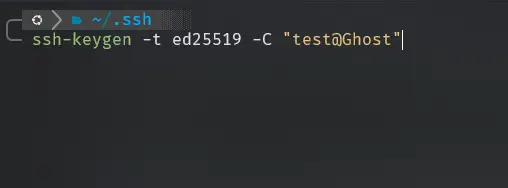
- Set a Passphrase. (This is not SSH password it’s extra layer of security to use you private key.)
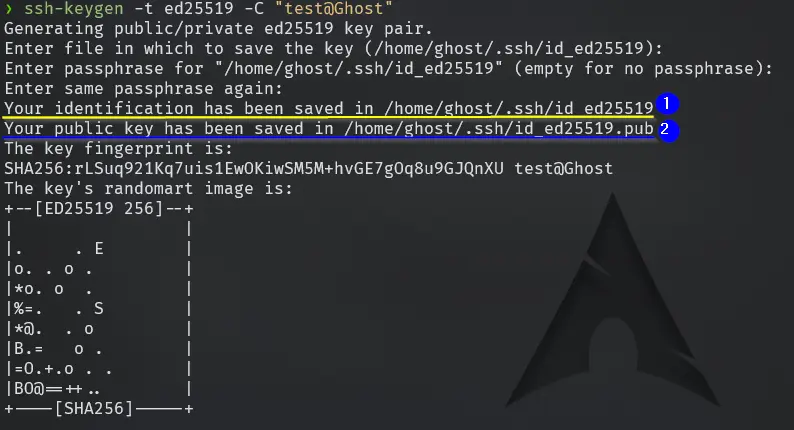
💡 I choose default name so i do not have to provide ‘-i keyfile’ during login. But if you have multiple private key for different purpose you can name them accordingly.
Now you will have 2 files. Private key: id_ed25519 and Public key with .pub extension: id_ed25519.pub, in your ~/.ssh directory.
Permissions
Make sure you have correct permission set for your keys when you download or paste it in a file. You do not need to worry about permission on the files created by the command however if you choose to backup or copy it in another file you should set the following permission.
1
2
3
chmod 700 ~/.ssh
chmod 600 ~/.ssh/id_25519
chmod 644 ~/.ssh/id_25519.pub
Storing The Keys
Private Keys
This should always be on your local machine and nowhere else but you can use a password manager like Bitwarden for backup.
Public Keys
Now this is the best part, you can store this anywhere but i would recommend it to store in Github or Launchpad. For me, I use Github a lot so i choose Github.
Go to Github Settings
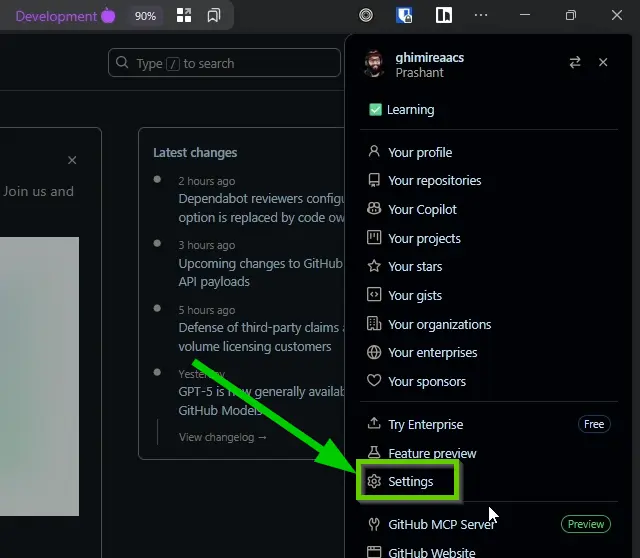
On Access Tab choose
SSH and GPG Keys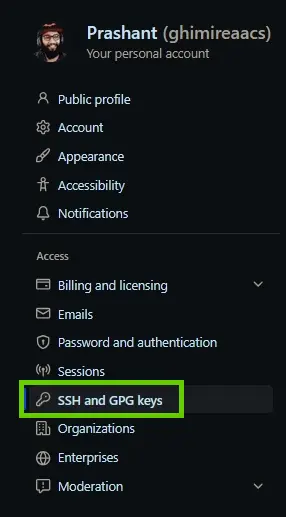
Click on New SSH Key

Set a Title, Key Type:
Authentication KeyKey: Now paste contents of
id_25519.pub‼️ Check its.pub.Add SSH Key
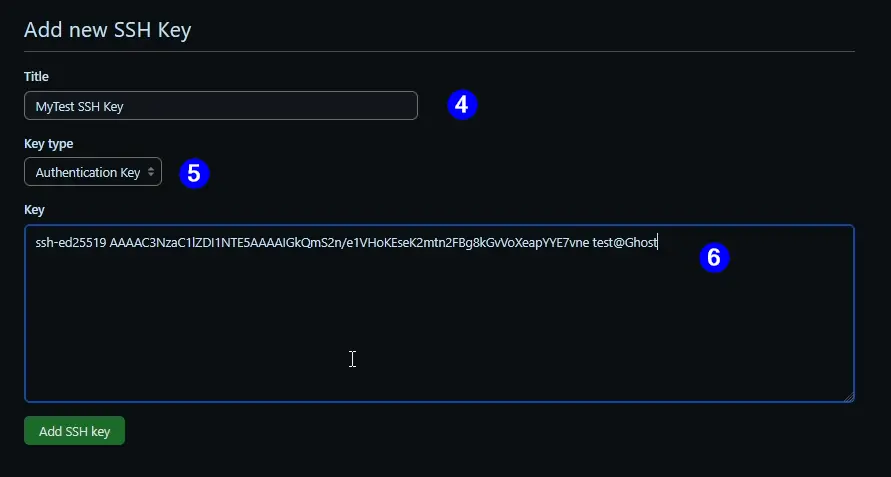
Fill up your 2FA and Submit.
Now you will see List of public Keys in your account. We will leave this for now and retrieve them from our CLI/shell. 
Accessing The Public Key
Now just like almost everything in life there are multiple ways we can do this.
- Manual Method
- Automatic Method
Manual Method
This is the method where we simply copy and paste our public key into a file.
- Copy the content of
id_25519.pub - Paste it in
~/.ssh/authorized_keysand save it. - Check Permission of the
authorized_keysor just change it from commandchmod 644 ~/.ssh/id_25519.pub. - Done.
Now this method is not much of a task on itself if you want to do once or not store public key in some Publicly accessible repo itself. But there is better way we can do it and integrates perfectly and seamlessly with any workflow.
Automatic Method
Given you have to go through setup process but just like any automation once you set it. All you need is One command line. And it will retrieve your Public SSH key and make your machine accessible by you.
ssh-import-id-gh github-username
That’s it that’s all you need. Copy this command, change it to the github-username you saved your public key to and done.
Now you can access your Machine.
If your private key is compromised in anyway remove this newly added line from
authorized_keys.